table of contents
- Open a new design in Canva for the content you are looking to create. For this example, we are going to select ‘custom size’ to make a horizontal ad for Meta using their recommended size of 1200px x 628px.
- Upload your image under ‘Uploads’ and add it to your design.
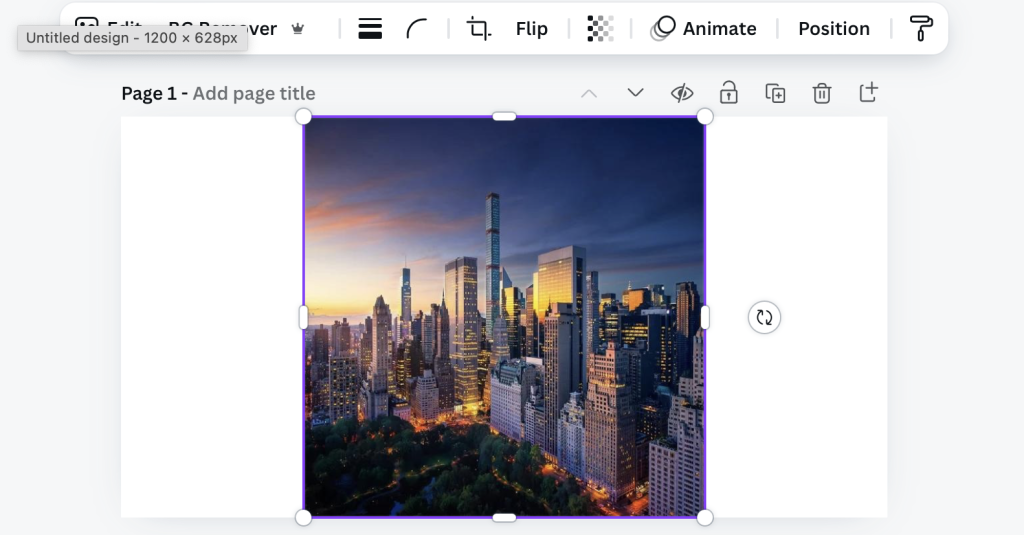
- Once added, click the crop button to access the crop tool.
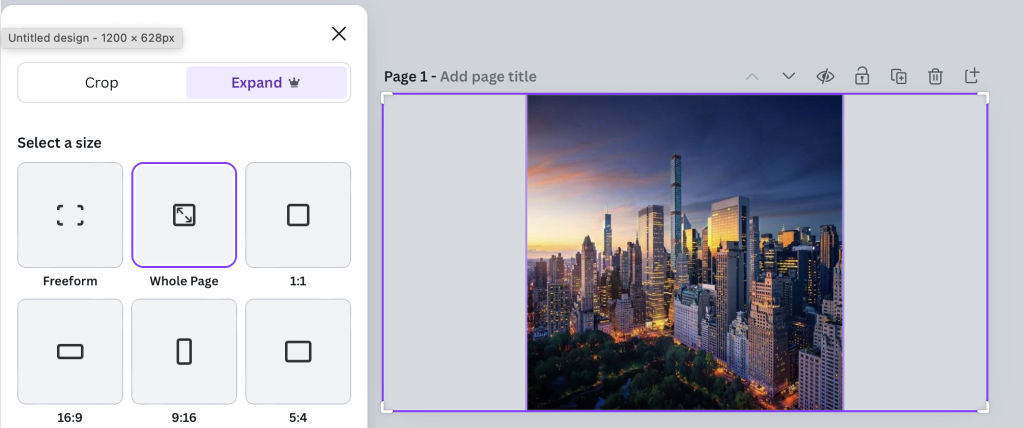
- Within the crop tool options, click on the ‘Expand’ option. (This tool requires Canva Premium to use).
- Choose ‘fit the whole page’ under ‘Select a Size.’
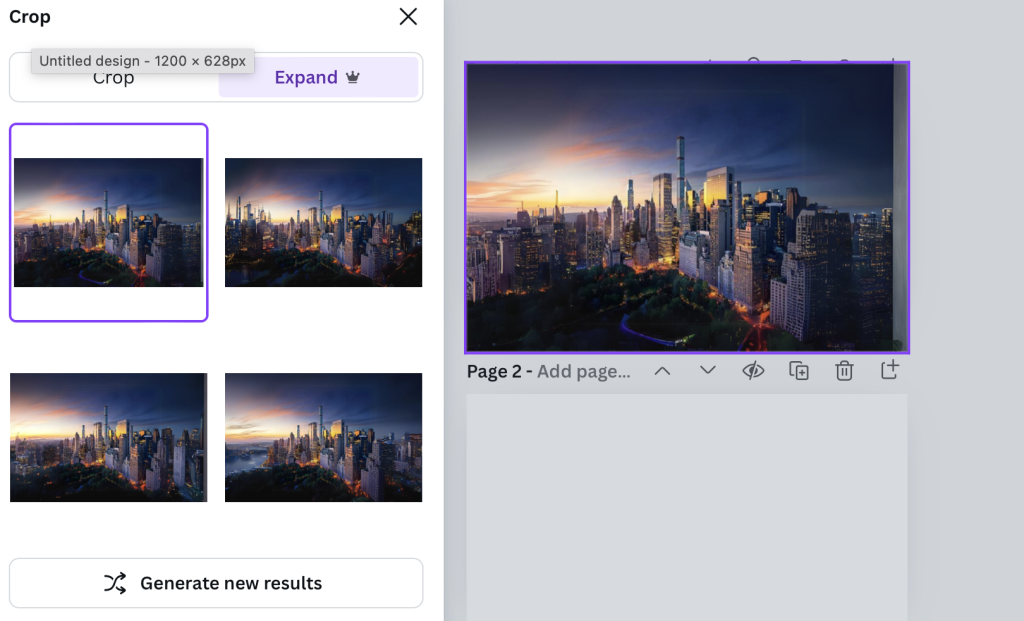
- Canva will generate the rest of the image using its AI technology. It will give you four options to choose from (Note this feature is still in it’s learning phase so some images will work better than others – images with hands and faces in the corners may not work as well.)
- Pick the generated option you prefer (If you don’t like any, you can also re-generate for further options).
- 8. Edit and add text / graphics to fit your design.
- Pro Tips To Consider:
- Want to Learn More?
Using Canva’s Expand Tool to Extend Images: A Quick Guide
Are you struggling with marketing images or assets that don’t align with your platform’s recommended dimensions? Have you tried to enlarge them, only to end up with blurry or pixelated images that obscure important text?
Canva has a solution for this! Canva Premium’s expand tool which can be found under the ‘crop’ function can be used to quickly and easily resize images to fit specific dimensions. This tool offers several key benefits:
-
Saves Time: Perfect for creating banner ads or social media graphics quickly.
-
Preserves Image Quality: The expand tool can assist you in preserving image quality when resizing if it is utilised appropriately.
-
Offers Versatility: This tool can be applied to a variety of design tasks.
Here is a step-by-step guide on how you can use it:
-
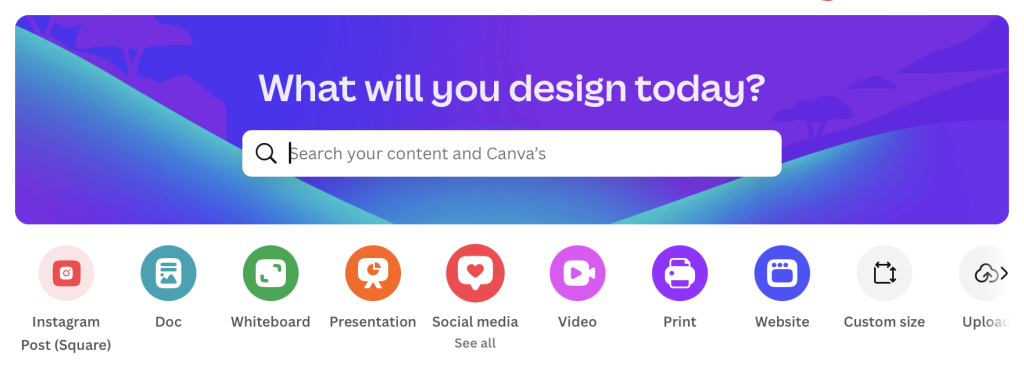
Open a new design in Canva for the content you are looking to create. For this example, we are going to select ‘custom size’ to make a horizontal ad for Meta using their recommended size of 1200px x 628px.
-
Upload your image under ‘Uploads’ and add it to your design.

-
Once added, click the crop button to access the crop tool.
-
Within the crop tool options, click on the ‘Expand’ option. (This tool requires Canva Premium to use).
-
Choose ‘fit the whole page’ under ‘Select a Size.’
-
Canva will generate the rest of the image using its AI technology. It will give you four options to choose from (Note this feature is still in it’s learning phase so some images will work better than others – images with hands and faces in the corners may not work as well.)
-
Pick the generated option you prefer (If you don’t like any, you can also re-generate for further options).
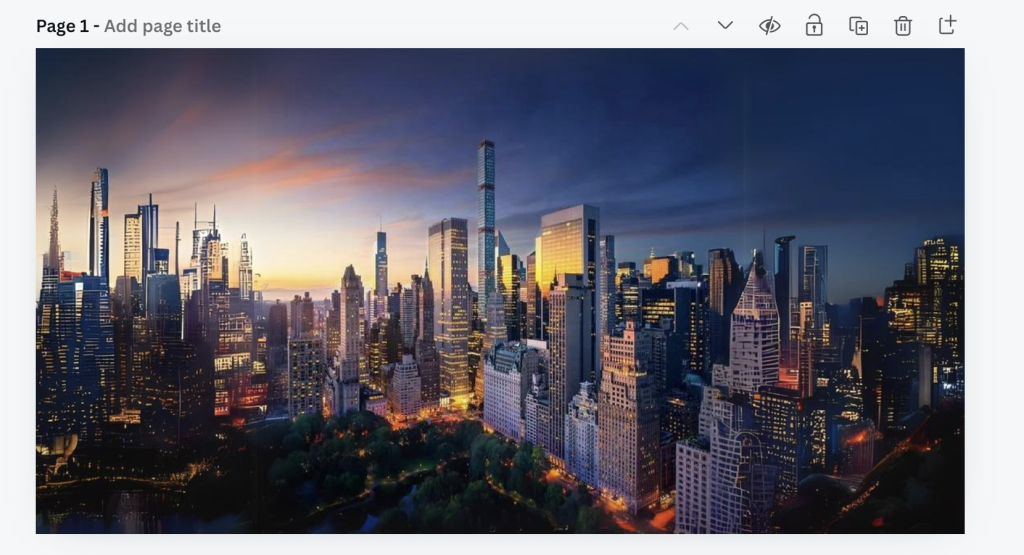
8. Edit and add text / graphics to fit your design.

Pro Tips To Consider:
- Start with a High-Quality Image: The original image’s quality will determine the final image’s quality. Make sure the image you’re dealing with has a high resolution.
- Make use of Canva’s additional editing features: After you’ve expanded your image, you can further improve your design by using Canva’s other editing options, such as text, filters, and effects.
- Be mindful of Aspect Ratios: When expanding small images, keep aspect ratios in mind. An image may appear distorted or pixelated if it is expanded excessively.
With the Expand Tool by your side, conquering image dimension woes is a breeze! Now go forth and create stunning visuals for all your marketing needs!
Want to Learn More?
If you’re interested in learning more about design tools like Canva or need support with your marketing projects, feel free to leave a comment below or reach out to us at contact@glowmetrics.com. You can also stay updated with the latest design and marketing tips by following GlowMetrics on Twitter or LinkedIn, or subscribing to our newsletter for fresh insights into Digital Analytics and Marketing.
Don’t forget to sign up for a complimentary account on our Resource Hub! You’ll gain access to exclusive content, including how-to videos and expert advice on digital marketing and analytics strategies.